Kids’ Learning Apps Without Ads or Purchases: 7 Checks
A learning app can be free to download and still offer ads, paid content or a subscription. These seven checks help parents understand the cost and experience before handing over a device.
Published and information checked: . Written by 39Kids, the developer of PhotoPuzzle. Store and device screens can vary by region, operating system and update. The cover is an AI-generated image. Practical guidance was updated on October 7, 2026.
“Free to download,” “no ads” and “no in-app purchases” are three separate claims. Check both the store listing and the first few screens of the installed app.
Decide which condition matters most at home. One family may avoid ads but accept a one-time paid app; another may want to avoid every purchase prompt even in a free download. The word “free” alone cannot make that choice, so test the first play session yourself.
This guide focuses on how to choose, rather than ranking apps. If you want pictured recommendations across different kinds of play, see our nine free game apps for 3-year-olds.
Seven checks for a children's app with no ads or purchases
- Free content: what works without paying, and where the free part ends
- Ads: the store label and what appears during play
- Purchases: paid content, subscriptions and free-trial terms
- External links: routes to websites, videos or other apps
- Photos and data: requested permissions, store disclosures and privacy policy
- Usability: age guidance, language, controls and device compatibility
- When you use it: offline behavior and how easily a session can end
An app does not need to satisfy every point to be a good fit. Decide which conditions matter most to your family before comparing candidates.
“Free” can mean three different things
The word free may describe only the download. Check what happens once a child wants to continue.
| Model | What it often looks like | What to check |
|---|---|---|
| Everything is free | Activities do not require a purchase | Ads, external links and later changes |
| Some content is free | Extra lessons or levels cost money | How much a child can play for free |
| Free trial | Paid access may begin after a trial | Sign-up terms, end date and renewal price |
Apple explains that the App Store indicates in-app purchases near an app's price or Get button. If you see that label, find out what the purchase unlocks rather than stopping at the download price.
How to check ads and purchases before deciding
1. Find the actual free play area
An app that is free to install may interrupt play quickly with an upgrade. Open it yourself and finish one available activity. Note where the free experience stops and whether a child can leave the paywall easily.
2. Look beyond the ads label
Google Play displays a Contains ads label for declared advertising. Google also explains that this label does not cover every other commercial element, including paid product placement or promotion of upgrades. Review the actual screens after installation.
3. Understand purchases and subscriptions
Find out what a purchase adds and whether the charge repeats. If a free trial needs registration, check the end date and renewal price before accepting it. Parents can also review Apple's purchase controls or Google Play purchase approvals.
4. Try every route out of the app
“No ads” does not guarantee that buttons cannot open a video, browser, social account or another app. Check settings and any parent section as well as the play screen.
5. Review permissions and data information
Ask whether photo, microphone or location access is needed for the game. Apple explains that store privacy disclosures are submitted by developers, so read the privacy policy and the device's permission prompts too. Our family photo privacy guide explains the separate steps involved in using a child's picture.
6. Check age, language, controls and device
An age label is a starting point. Does play require reading? Are the taps manageable? Is the instruction language familiar to your child, and does the app work on your device? A label alone cannot answer those questions.
7. Test the setting where you plan to play
If offline use matters, turn off connectivity during a trial at home and test the full activity. A picture stored only in the cloud may still need a download before you can select it. Check that you can stop at a natural break, too.
A short first-run check for parents
Spend a few minutes with the app yourself before handing over the device. The duration is only a planning suggestion.
- 1. Finish the first available activity
Watch for ads, purchase prompts or a browser opening unexpectedly. - 2. Open settings and the parent area
Check links, sound, photo permissions and language options. - 3. Stop and return
Try the exit path, saving behavior and, if relevant, the same activity without internet access.
Google Play purchase approval applies to purchases made through Google Play's billing system. It does not assess outside websites or every commercial message in an app.
If your child will borrow your phone for a short time, see how to keep an iPhone or Android phone on one app after choosing the app. Pinning and purchase controls serve different purposes.
Applying the checks to PhotoPuzzle
For a concrete example, consider PhotoPuzzle, made by 39Kids. As checked on September 25, 2026, its App Store listing describes a free iPhone and iPad app with no ads or in-app purchases. It lets families make photo puzzles with 4, 9, 16, 25 or 36 pieces.
Photo access and the device's separate cloud sync settings still deserve their own check. See how to use PhotoPuzzle for a first session, and our privacy guide for family pictures. Because we are the developer, apply the same seven checks when considering other apps as well.
Frequently asked questions about ads and purchases
Does “free” mean there are no in-app purchases?
No. A free download may offer paid lessons, levels or subscriptions. On the App Store, look for the in-app purchases notice near the price or Get button. On Google Play, inspect the product information. Then try a complete free activity yourself to see what is included.
If Google Play does not say “Contains ads,” are there no promotions?
You cannot assume that. Google explains that the Contains ads label does not describe every other commercial element, such as paid product placement or promotion of upgrades. Check the actual app screens as well as the store listing.
If the App Store has no in-app purchase notice, will the app always remain free?
Features and prices may change. Check the current store listing, what you can actually use without paying and any free-trial end date. Parent purchase controls can add another layer of protection.
Can an app without ads still open a website or video?
Yes. Advertising and external links are different checks. Look through settings and parent areas to see whether a child could leave the app for a browser, video or another app.
Does a privacy label tell me everything about family photos?
A store label is a starting point. Also read the app description and privacy policy and check the device permission prompt. Selecting a photo, processing it in the app, cloud syncing and sharing are separate actions.
How can I reduce accidental purchases?
On iPhone or iPad, review Screen Time purchase restrictions and Ask to Buy for a child account. On a supervised Android account, review Family Link purchase approvals. Google Play approval covers purchases using Google Play billing, so check any external links separately.
Check the listing, then try the app yourself
A free download, no ads, no purchases, outside links and data handling are separate questions. Shortlist candidates using the store, then try one complete activity before your child plays.
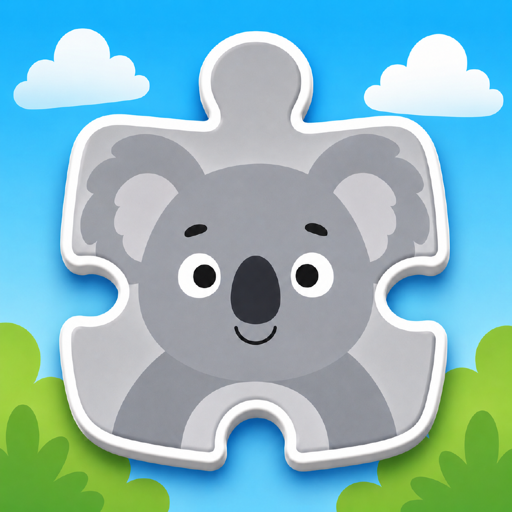
PhotoPuzzle
Turn a favorite photo into a 4–36-piece puzzle. Free to use, with no ads or in-app purchases. Try the first session together.