Toddler Won't Stop Watching YouTube? 5 Gentle Activity Swaps
One video while you make dinner becomes three. You close the app, your child melts down, and “just one more” feels like the only way forward. That does not mean you have failed. Instead of banning every video overnight, make the ending visible and prepare one short activity your child can choose next.
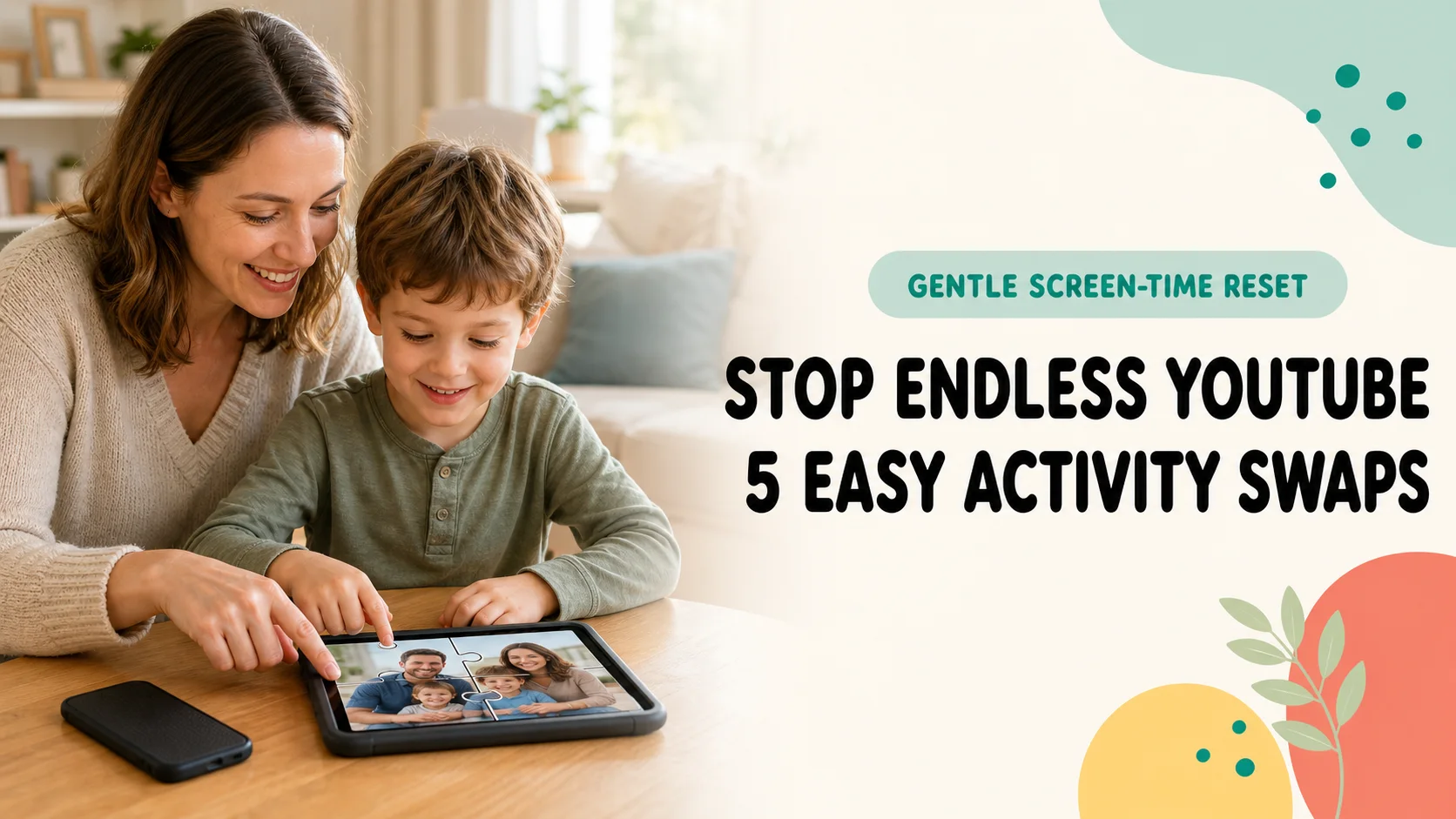
Videos can help while you cook, take a work call, wait at an appointment, or simply catch your breath. Using them does not make you a bad parent.
The difficult part is often not the first video. It is the lack of an endpoint: another video starts, dinner gets later, and closing the screen becomes the biggest conflict of the day. This guide focuses on a manageable goal—give one viewing session a clear ending and make the next action easy to choose.
On a busy day, the replacement need not demand an hour of your attention. Try a small sequence: the last video, choosing one family photo together, then an activity your child can continue beside you.
What you will learn
- The first three changes that reduce endless viewing
- How to use autoplay, timer, and content controls in YouTube Kids
- Five activity swaps a preschooler can start quickly
- Short scripts for before and after the screen turns off
- How current health guidance frames screen time
AAP's 2026 policy statement and Google's YouTube Kids help pages were rechecked on August 29, 2026. Menus can change, so use the linked official instructions while adjusting a device.
Start with an ending and two next choices—not a total ban
Changing the number on a timer is only one part of the reset. The most useful first steps are to agree on an endpoint before play, turn off autoplay, and put the next activity where your child can see it.
If the video is shorter than five minutes, give the warning before pressing play: “After this one, we switch.” Put the next activity within reach before the ending arrives. A predictable endpoint matters more than a perfect countdown.
| When | What the parent does | Simple wording |
|---|---|---|
| Before play | Choose one video or a timer | “This is the last one today.” |
| Five minutes left | Show two next activities | “Stickers or a puzzle next?” |
| At the end | Name the feeling and keep the limit | “You wanted more. Now you can choose.” |
- 1. Choose one clear endpoint before pressing play
Decide between “when this video ends” and “when the timer rings,” then say it before the video starts. - 2. Turn off autoplay
Stop the next video from beginning automatically so there is a visible moment to make a new choice. - 3. Put the next activity in sight
Set out stickers, three family photos, or a four-piece puzzle before screen time ends. - 4. Name the feeling, then hold the boundary
Acknowledge that your child wanted more, keep the agreed ending, and offer two next-step choices.
The first goal is not “no tears.” Your child can be disappointed and still complete the transition. If the planned video ended and your child eventually moved to the next step, you practiced the skill you wanted.
Why is it so hard for a preschooler to stop?
1. Autoplay removes the natural stopping point
When a new video begins immediately, the child never gets a quiet moment to decide whether to continue. The American Academy of Pediatrics' 2026 policy statement explains that engagement features such as autoplay and endless scrolling can compete with sleep, play, and family time. See the AAP's 2026 digital-ecosystems policy.
2. The ending arrives suddenly from the child's point of view
Dinner may be an obvious reason to the adult, but the child experiences an enjoyable activity disappearing midstream. A warning before the first video and another before the last one makes the transition more predictable.
3. Nothing is ready to happen next
If you start searching for crayons only after closing the app, the easiest available option is another video. The replacement does not need to be elaborate. Put out one sheet of paper, three family photos, five blocks, or a four-piece puzzle before screen time ends.
4. The video is also protecting the parent's break
Reducing screen time can return a large amount of supervision to an already tired parent. Choose swaps that fit your actual capacity: start together for two minutes, then let the child continue nearby while you finish dinner.
Change these three YouTube Kids settings first
Do not rely on willpower and repeated reminders alone. These steps refer to YouTube Kids, not standard YouTube. Supervised accounts and TV apps may place controls elsewhere, so confirm the service and profile first.
Turn off autoplay
Google says autoplay is off by default in YouTube Kids, but check its current state on each device and profile. A parent can also select “Disable autoplay” so the child cannot switch it back on. Google's parental-controls guide also explains content levels, search controls, approved-content-only mode, and history settings.
Use the built-in timer
The YouTube Kids timer shows a time-up alert and locks the app when the chosen session ends. Use it as support for an agreement made before viewing—not as the first and only warning. See Google's official timer instructions.
Limit discovery when you need more predictability
Parents can turn off search or use approved-content-only mode. Pausing watch history can also keep new views from shaping recommendations. These settings do not decide how long your child should watch, but they reduce the “what will appear next?” variable.
Settings will not guarantee a calm ending. Pair the timer with advance warnings and two visible next choices so the locked screen leads somewhere.
Five easy swaps for the end of a video
You do not need an activity more exciting than YouTube. Look for something that starts in under a minute, has a visible finish, and connects with what your child just watched.
1. Copy one movement three times
If the video featured animals, move like one animal. If it featured music, dance to the favorite part without the screen. If it featured trains, make a track with your arms. Stop after three turns and get a drink of water.
2. Move the same theme to paper or toys
Draw one dinosaur, make one pretend meal, or find three red toy cars. “Let's keep playing with the thing you just saw” is an easier invitation than presenting a completely unrelated task.
3. Ask three questions about family photos
Open three saved photos and ask: “Where were we?” “Who was there?” and “What happened next?” There is no autoplay, and the activity ends after three questions. For more ideas, see how to turn family photos into puzzles for free.
4. Complete one four-piece photo puzzle
The goal is not to replace a long video session with a long app session. Use one photo, four pieces, and stop after the picture is complete. Let your child choose a photo of themselves, family, a pet, or something seen that day.
PhotoPuzzle offers 4, 9, 16, 25, and 36 pieces. It is free, with no ads or in-app purchases, and processes photos on the device.

5. Choose between two “what's next” cards
Use quick photos or drawings for “bath,” “one sticker,” “one book,” “five blocks,” or “snack.” Show only two options that are actually possible. The choice is no longer whether to stop the video; it is what to do after the agreed ending.
| Swap | Setup | Visible finish | Useful when |
|---|---|---|---|
| Movement copy | None | Three turns | Your child needs movement |
| Paper or toys | Minimal | Make one thing | You are at home |
| Photo questions | None | Three questions | You can talk together |
| Four-piece puzzle | App and photo | Complete one image | Cooking or waiting |
| Next-step cards | Two cards | Begin the chosen task | Before bath or dinner |
Try a three-day reset instead of rewriting every rule
Choose one difficult viewing period and change only that session for three days.
Day 1: Turn off autoplay and notice the pattern
Identify why the video begins and when stopping becomes difficult. “Right after preschool” or “while dinner finishes” is more useful than tracking every minute.
Day 2: Preview the last video and two next choices
State the endpoint before starting. Five minutes before the end, show the two activity options. A meltdown does not automatically mean the plan failed; ask whether the ending stayed predictable.
Day 3: Keep one element that worked
Maybe the timer upset your child, but the photo questions worked. Maybe one video was unrealistic, but two ended successfully. Keep the workable part and adjust one variable at a time.
Plan for the parent's energy too. A replacement that requires your full attention for an hour will not survive a busy week. Start together, then choose something the child can continue near you.
What to say before and after the screen turns off
| Moment | Try saying | Avoid |
|---|---|---|
| Before viewing | “This is the last one. What will you choose next?” | Starting without an endpoint |
| Five minutes left | “Almost finished. We will close it after this one.” | Taking the device without warning |
| At the end | “You wanted more. Puzzle or stickers next?” | Arguing about whether the feeling is valid |
| During tears | “You are upset. Videos are finished. I am here.” | Making another video the usual way to stop crying |
| After the switch | “You chose what to do next.” | “Finally—you stopped.” |
Long explanations are hard to process during a transition. Use one sentence for the feeling, one for the boundary, and one for the next choice.
If a puzzle creates a second conflict, it may be too difficult. Our guide for when a 3-year-old cannot do or does not like puzzles starts with a four-piece success.
Screen-time guidance is more than a pass-or-fail number
The World Health Organization's under-five guidelines recommend no more than one hour of sedentary screen time for children ages 3–4, with less being better. The recommendation sits within a full 24-hour picture that also includes physical activity, sedentary time, and sleep.
The AAP's 2026 policy broadens the conversation beyond minutes alone to the child, family context, and platform design. Instead of treating one long day as a failure, ask what media is displacing and which design or routine makes stopping difficult:
- Is media pushing bedtime or meals later?
- Is there still time for movement and outdoor play?
- Can an adult occasionally watch, play, or talk alongside the child?
- Can the child move to another activity after the planned endpoint?
- Do adults put their own phones away during meals and bedtime?
If media use is seriously disrupting sleep, eating, preschool, or daily family life—or if you have ongoing developmental or behavioral concerns—talk with your child's pediatrician for individual guidance.
If long viewing sessions happen mainly on trips, our quiet Shinkansen activity rotation for a 3-year-old shows how to mix offline play, conversation, snacks, and one short app activity.
FAQ about endless YouTube viewing
Is it better to ban YouTube all at once?
That depends on your family and what your child is watching. If videos are part of every day, it may be easier to turn off autoplay and practice ending after one planned video first. Focus on the times when viewing is crowding out sleep, meals, movement, or family life.
How much screen time should a 3-year-old have?
The World Health Organization recommends no more than one hour of sedentary screen time for children ages 3–4, with less being better. The American Academy of Pediatrics also encourages families to consider quality, context, and conversation—not the clock alone. Use these as planning guides, not a score for your parenting.
What if the timer makes my child cry?
Do not let the timer deliver the only warning. Tell your child before viewing begins, again with five minutes left, and again before the final video. Show two possible next activities before the timer sounds. Validate the disappointment without making an extra video the automatic solution.
Is unlimited viewing safe if we use YouTube Kids?
YouTube Kids includes content levels, autoplay controls, search controls, and an approved-content-only option. Those tools help shape what appears, but families still need to consider whether viewing is displacing sleep, meals, movement, creative play, or conversation.
Are the settings the same in YouTube and YouTube Kids?
No. YouTube Kids is a separate child-focused service with controls such as its parent timer and approved-content-only mode. Standard YouTube and supervised accounts use different menus. Confirm which service and profile your child uses before following the relevant official help page.
Does swapping a video for an app really help?
An app still counts as screen use. However, an activity with a visible endpoint—such as completing one four-piece puzzle—can help children practice stopping and moving on. Combine digital activities with books, movement, drawing, and conversation rather than replacing every video with another app.
Does PhotoPuzzle work offline?
Yes. Photo selection, puzzle creation, and play happen on the device. The app has no ads or in-app purchases and offers 4, 9, 16, 25, and 36 pieces. For a first transition activity, use one photo and four pieces.
Connect the end of a video to one small next action
You do not need a perfect family media plan tomorrow. Change the ending of one daily session first.
- Agree on one video or a timer before pressing play
- Turn off autoplay so another video does not begin by itself
- Show two activities that can start immediately
- Validate disappointment without changing the endpoint every time
- Look at sleep, movement, play, and conversation—not minutes alone
The aim is not to make videos the enemy. It is to make them one tool your family can start and stop, with space left for the rest of childhood.

PhotoPuzzle
Turn a favorite family photo into 4–36 pieces. Begin with one photo and four pieces, then stop when it is complete. PhotoPuzzle is free, with no ads or in-app purchases.